
Alt text (long description):
A four‑panel black‑and‑white comic strip titled “Feedback Inc.” appears at the top left, with the creator credit “By Mark Larson” printed at the top right. The comic depicts an office scenario that escalates visually from left to right, illustrating the unintended consequences of using the “Reply All” email function.
Panel one:
A person is seated at a desk in an office cubicle, facing a computer monitor. On the screen is an email composition window. The email header reads “To: Employees” and “Subject: Promotion.” In the body of the email, visible text says, “We want to congratulate John on his promotion.” The desk has a nameplate reading “Wade,” and the overall setting is a typical office workspace with neutral furniture and minimal background detail.
Panel two:
The same person sits at the desk, now reacting to incoming email replies. Several overlapping rectangular text boxes float in the air near the computer screen, each reading “Reply‑All: ‘Congratulations!’” The repeated messages are shown stacking up, suggesting multiple employees responding to the original email using “Reply All.” The person’s posture indicates surprise or concern as the number of responses begins to increase.
Panel three:
The scene becomes visually crowded. The number of overlapping “Reply‑All: ‘Congratulations!’” message boxes has dramatically multiplied, now filling almost the entire panel and obscuring much of the background and the computer. An arm reaches upward from behind the pile of messages, hand extended toward the air, implying frustration or an attempt to stop the flood of replies.
Panel four:
The screen is completely overwhelmed by a dense wall of repeated “Reply‑All: ‘Congratulations!’” messages, which form the entire background. In the foreground, a hand is shown slamming down forcefully, accompanied by a speech bubble that reads: “Whoever invented ‘Reply All’ should die!” The exaggerated statement emphasizes the comic’s satirical tone and highlights workplace frustration caused by excessive reply‑all emails.
When you send out a mass email, you can send it as a BCC (Blind Carbon Copy) so that when someone hits Reply All, they are not replying to the entire campus.
After you turn on the Bcc box, it appears every time you create a message until it's turned off. The option to turn on the Bcc field can be found in two locations, depending on whether you are composing a new message or replying to or forwarding a message.
Step 1: Create a new email message or reply to or forward an existing message.
Step 2: If the message you're composing opens in a new window, select Options > Bcc.
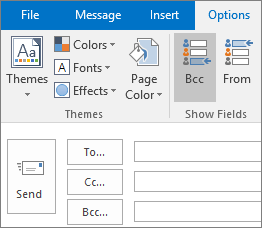
If the message you're composing opens in the Reading Pane, select Bcc from the ribbon.
Step 3: In the Bcc box, add recipients, compose the message, and choose Send when done.
Turn off Bcc
You can turn off the Bcc box for future messages at any time.
Step 4: Create a new email message or reply to or forward an existing message.
Step 5: If the message you're composing opens in a new window, select Options > Bcc.
If the message you're composing opens in the Reading Pane, select Bcc from the ribbon.
Note: The background color distinguishes between the Bcc button being turned on or turned off. A dark background means the button is turned on, and a light background means it's turned off.
View Bcc recipients
If you're the recipient of a message, you can't see whether the sender added Bcc recipients. Only the sender of a message can see the names of Bcc recipients by opening a message in the Sent Items folder, where all sent messages are stored by default.
Step 1: In the Sent Items folder, open the message that you sent.
Step 2: In the Reading Pane, view the header section of the message.
