Body

What is Multi Factor Authentication (MFA)?
You can get extra protection on your TCC student email account. You are able to enroll in Multi-Factor Authentication (MFA), which will protect your TCC account with a text message or other verification method in addition to your password. With that added protection, your account will stay safe if your password is compromised.
Microsoft highly recommends that you use the MS Authenticator App for generating codes. They have determined that this is far more secure. We have the links for the app below. In determining this, when logging in for the first time, you will be prompted to set up the Authenticator App by default.
However, they do understand that not everyone has access to a mobile device all the time, so you can pick the alternate methods. But you mush have 2 set up.
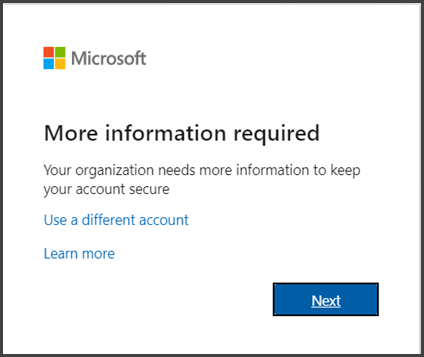
Step 1: Sign in to Microsoft 365 with your work or school account and your password, like you normally do. After you choose Sign in, you'll be prompted for more information.
-
Choose Next
Step 2: The default authentication method is to use the free Microsoft Authenticator app. If you have it installed on your mobile device, select Next and follow the prompts to add this account.
***If you must use SMS messages sent to your phone or a call to a landline, select "I want to set up a different method". Microsoft 365 will ask for your mobile number, then send you an SMS message containing a 6-digit code to verify your device, or select to have it call a landline number.

Step 3: After clicking the link, you will get the following pop-up to pick another method.

Step 4: Once you pick a method, click Continue.

Once you complete the instructions to specify your additional verification method, the next time you sign in to Microsoft 365, you'll be prompted to provide the additional verification information or action, such as typing the verification code provided by your authenticator app or sent to you by text message.
Here are the links for the Authenticator App for mobile devices:
For Apple devices:
For Android devices:
You can change your Multi-Factor Authentication (MFA) settings here:
https://aka.ms/mfasetup
How can I find out more?
Follow that link to a video that will describe more:
For assistance, please visit the Info Commons in Building 16 or by phone at 253.566.5176.