Body
What is Multifactor Authentication (MFA)?
Multifactor Authentication (MFA) is a powerful tool against stolen credentials and phishing attacks. MFA requires a pre-configured authentication device to deliver a PIN code (like a cell phone text message) to be used along with user name and password before an individual can log in to certain TCC resources.
What is happening?
To safeguard your Faculty/Staff TCC computer account, TCC has activated Multifactor Authentication (MFA) for logging into your TCC account.
What do I need to do?
Please follow the PDF guide attached to this help article to walk you through MFA setup. This will allow for a second verification of your credentials when you are logging into TCC resources.
***NEW Precautions from Microsoft*****
Microsoft highly recommends that you use the MS Authenticator App for generating codes. They have determined that this is far more secure. We have the links for the app below. In determining this, when logging in for the first time, you will be prompted to set up the Authenticator App by default.
However, they do understand that not everyone has access to a mobile device all the time, so you can pick the alternate methods found in the PDF guide below.
Step 1: Sign in to Microsoft 365 with your work or school account and your password, like you normally do. After you choose Sign in, you'll be prompted for more information.
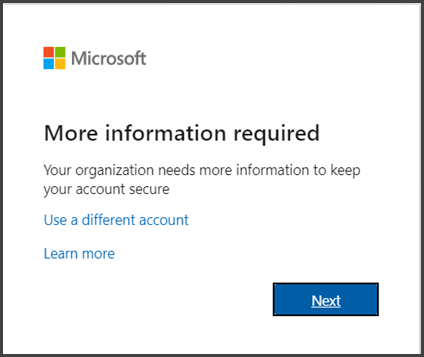
-
Choose Next
Step 2: The default authentication method is to use the free Microsoft Authenticator app. If you have it installed on your mobile device, select Next and follow the prompts to add this account.
***If you must use SMS messages sent to your phone or a call to a land line, select "I want to set up a different method". Microsoft 365 will ask for your mobile number, then send you an SMS message containing a 6-digit code to verify your device or select to have it call a landline number (Office number).
Step 3: After clicking the link, you will get the following pop-up to pick another method.

Step 4: Once you pick a method, click Continue.

Once you complete the instructions to specify your additional verification method, the next time you sign in to Microsoft 365, you'll be prompted to provide the additional verification information or action, such as typing the verification code provided by your authenticator app or sent to you by text message.
Here are the links for the Authenticator App for mobile devices:
For Apple devices:
For Android devices: